
The Day One induction is an important part of welcoming a new employee to Anchor Group Services and making sure they have the information and support they need to get started.
The Day One Induction Training Record must be completed with every new starter on their first day. A link to the form is available in the Employee Management Forms section on the Customer Portal App (Zoho Forms). It can also be accessed through the Day One Induction page on the Anchor People App.
Work through each section of the form with the employee, making sure they understand the information provided, know how to access the systems and resources they need, and understand what is expected of them.
The Day One induction does not replace the employee’s online mandatory training or site training. Where these are referenced on the form, explain what needs to be completed during probation and how they can access it.
Use this guide alongside the Day One Induction Training Record. Further guidance on accessing the relevant systems and apps is available from the tabs on the Day One Induction page on the Anchor People App.
If the employee requires a work email address, laptop, mobile phone or other IT equipment, make sure you have requested these through the Tech Services department in good time for their arrival.
Check that you have an Anchor welcome pack ready to give to the employee, where applicable (normally full-time employees). These are held by Operations Managers and include a lanyard and ID cardholder. If you need a pack or additional lanyards and cardholders, contact HR.
Before the employee’s first day, check with HR that everything is ready for their arrival. For example, has their uniform been ordered? Has their ID card been produced and sent? Have they returned their onboarding documentation? Have they been sent links to the Employee Portal and Anchor Academy?
Contact the employee before their first day to confirm where they need to report, what time they should arrive and who they should ask for.
If their uniform has not yet arrived, make sure they know what to wear in the meantime. They should arrive in smart, appropriate clothing and footwear.
If anything is outstanding, try to resolve it before they arrive or make sure you know what action is being taken.
Start by making the employee feel welcome and showing them around the site.
During the tour:
This should be a practical introduction to the site rather than a formal sit-down exercise. By the end of it, the employee should have a basic understanding of their surroundings, who they will be working with and what to do in an emergency.
Role and duties
Give the employee an overview of their role, who they report to and what they can broadly expect to be doing.
This is an overview only. Their specific duties, site procedures and practical requirements will be covered in more detail as part of their site training.
Key contacts
Make sure the employee knows who their key contacts are and how to reach them. This should include relevant site contacts, their manager and the 24-hour Anchor Operations Centre (AOC).
Explain that you will cover when and how to contact the AOC in more detail when discussing the booking on/off and absence procedures.
Travel and car parking
Check that the employee understands any site-specific arrangements for travel, parking or access to the site, particularly where there are restrictions or arrangements they need to be aware of for future shifts.
Onboarding documentation
Check that the employee has received their contract and onboarding documents electronically via Zoho Sign and has completed and returned them.
If they have not received the email, ask them to check their junk/spam folder. Refer any outstanding issues to HR.
Uniform
Check that the employee has received the correct uniform and has everything they need for their role.
If their uniform has not yet arrived, make sure they understand what to wear in the meantime. This should be smart, appropriate clothing, such as black trousers, a plain shirt or polo shirt and suitable footwear. Jeans, trainers and other casual clothing are not acceptable unless specifically authorised.
Explain that where uniform is provided, it must be worn while on duty and that a smart, professional appearance is expected at all times. Remind the employee that they are representing Anchor while at work and their appearance should reflect this.
If any uniform is missing, unsuitable or needs replacing, make sure this is followed up.
ID card
Check that the employee has received their Anchor ID card and issue them with a cardholder and lanyard.
Explain that their ID card must be worn and visible while on duty and kept safe and secure. It must not be shared with or given to anyone else.
Show them the QR code on the back of the card, which provides access to the Employee Handbook.
Employee Handbook
Show the employee how to access the Employee Handbook using the QR code on the back of their ID card. The Handbook can also be accessed through the Anchor People App.
Explain that the Handbook contains important information about working for Anchor, including our policies, procedures and the standards expected of employees.
The employee is not expected to read the Handbook as part of their Day One induction, but they should know where to find it and refer to it when needed.
Behaviour & Standards at Work
Click here to view the Standards and Behaviour section of the Employee Handbook.
Explain that, as a representative of Anchor, they are expected to behave professionally and respectfully towards colleagues, clients, customers and members of the public.
Introduce Anchor’s values – Authentic, Nurturing, Collaborative, Honest, Open-minded and Reliable – and explain how these underpin the way we expect everyone to behave and work with others.
Remind the employee that these standards also apply at work-related events and that behaviour outside work may become a Company matter where it could affect Anchor, our clients or our reputation.
Timegate
Help the employee download the Timegate Employee App from the Apple App Store or Google Play Store and make sure they can log in successfully.
The QR code below will take them to the correct store for their device.

Explain that they will need Anchor’s unique Timegate PIN and their individual Employee PIN to register. Make sure they know where to find these details and help them complete the set-up.
Once logged in, show them how to navigate the app, including where to view their rota and access their Timegate diary. Further guidance on downloading and accessing Timegate is available on the Day One Induction page under the Timegate tab.
Booking on/off
Explain how the employee must book on and off for every shift and make sure they understand the process for their site.
Explain what to do if they are unable to book on or off correctly, including when they need to contact the AOC.
Emphasise the importance of booking on and off correctly, not only to confirm attendance and ensure working hours are recorded accurately, but also for health and safety reasons. In the event of a fire or other emergency, it is important that we have an accurate record of who is on site so that everyone can be accounted for.
Rota and working hours
Talk the employee through their normal working pattern and show them where to view their rota.
Make sure they understand their expected start and finish times and who to speak to if they have a query about their shifts or working arrangements.
Overtime
Show the employee how to update their availability in their Timegate diary if they are interested in working additional shifts.
Explain how to view available overtime shifts and volunteer for them through Timegate.
Make sure they understand that volunteering for overtime does not automatically mean they have been allocated the shift. Any additional shifts must be confirmed before they attend.
Employee Portal
Make sure the employee knows how to access the Employee Portal and can log in successfully.
Show them the main areas they will need to use, including where to access their personal information and submit requests.
If they have not received their access details, ask them to check their junk/spam folder and follow up any outstanding access issues with HR.
Absence procedure
Explain what the employee must do if they are unable to attend work due to sickness or another unexpected absence.
Make it clear that they must notify the AOC at least six hours before the start of their shift if they are unable to attend work. Make sure they know how to contact AOC and understand the importance of following the correct reporting procedure.
Explain that absence is monitored and that failure to follow the Company’s absence reporting procedure may be treated as misconduct and dealt with under the Disciplinary Policy.
Signpost the employee to the Employee Handbook for further information about the Absence Management Procedure.
Annual leave
Explain how annual leave is requested through the Employee Portal and show the employee where to submit a request.
Make it clear that they must give at least four weeks’ notice when requesting annual leave.
Explain that once their request has been processed, they will be notified through the Employee Portal whether it has been approved. Remind them not to make any travel or accommodation arrangements until they have received confirmation, as leave is subject to operational requirements and cannot be guaranteed.
Signpost the employee to the Employee Handbook for further information about annual leave.
Pay
Explain that the employee will be paid monthly on the 12th of each month for work completed during the previous calendar month. If the 12th falls on a weekend, payment will be made on the preceding Friday.
Make sure they understand that their payslip will be sent to them by email.
Explain that any queries about their pay should be directed to the Finance Department, who can be contacted by email at payroll@anchorgroupservices.co.uk or by telephone on 01244 354700, option 4.
Probationary period
Explain that the employee is subject to a four-month probationary period, which may be extended by a further month if necessary.
The probationary period gives both the employee and the Company an opportunity to assess how things are going and whether the role is a good fit. During this time, their performance, conduct, attendance and progress with completing their required training will be monitored.
Explain that their manager will provide feedback and support throughout probation and that a formal review will take place towards the end of the four-month period. This will assess their progress and determine whether they have successfully completed probation or whether an extension is required.

Once you have registered for the Anchor Academy (you will have received an email from the Anchor Academy with a link to register), you may prefer the convenience of using an app to complete your training.
The app you need is called Trainer Central, which you can download from the App Store or Google Play.
Scan the QR code below to download the correct app for your device.

 This QR code will take you to the Install page for the App which can be shown to anyone that needs to install the app. We always recommend Allowing Notifications.
As an Anchor Group Services employee, you have access to the Anchor People App, which brings together useful information, links and tools relating to your employment with us.
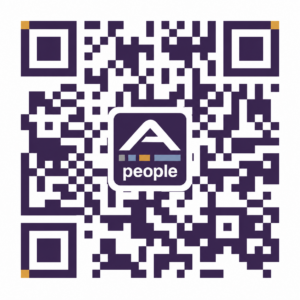
Available free of charge to every Anchor Group Services employee, the app is designed to make life a little easier by putting the information, links and tools you need in one place, whenever you need them.
From access to Timegate and your training account, to employee benefits, job vacancies, the Employee Handbook and nominating a colleague for an Anchor All-Star Award, the Anchor People App gives you quick and easy access to the things that matter most.
It’s a simple way to stay connected, keep up to date and access useful information relating to your employment with Anchor Group Services.